
How to Leave an Owner Message on a Shared File (Step by Step)
July 6, 2026 By imageresize.cc
You can add context for recipients in less than a minute once you know where the control lives. Walk through these steps at your own pace.
What you'll need
- One or more images (up to 10 per batch, 10 MB each)
- Any modern browser on computer, tablet, or phone
- No account — start immediately
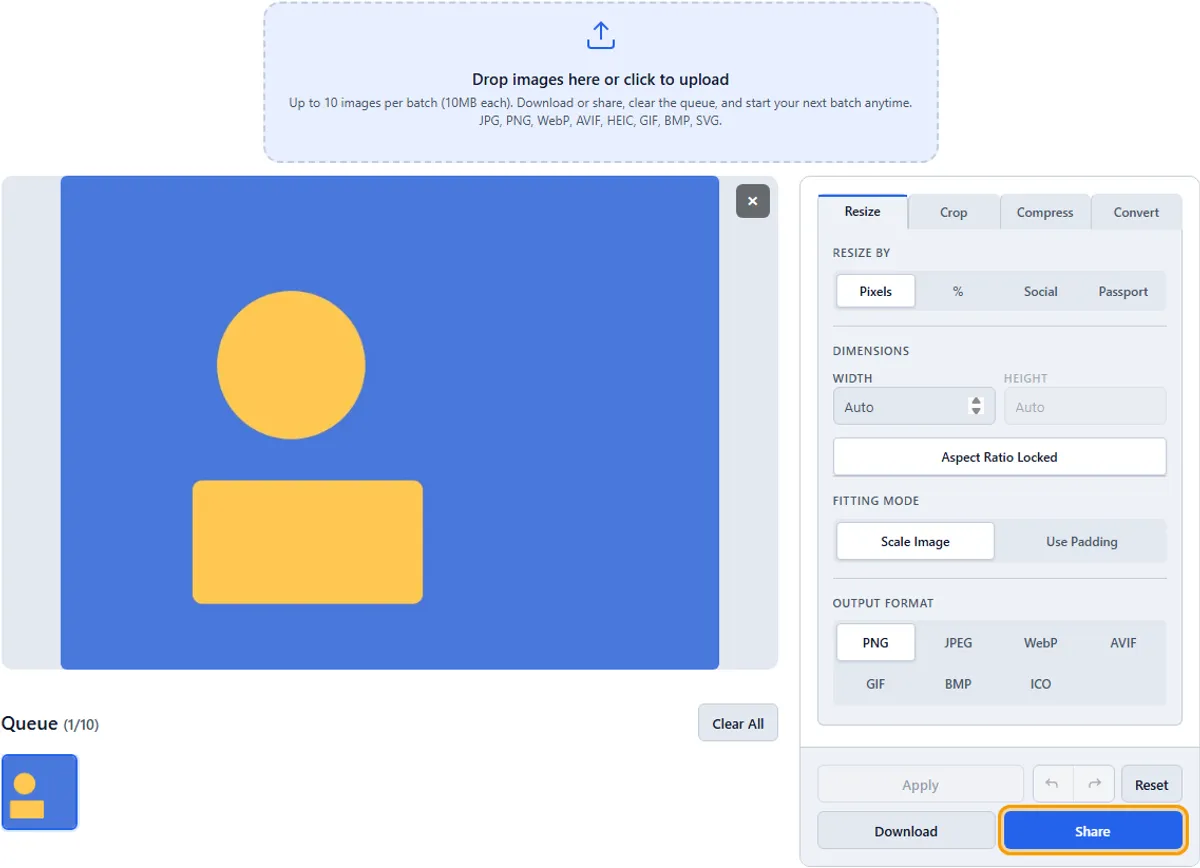
Step 1: Click Share
Open share options after processing. Bookmark the page if you use this workflow often.
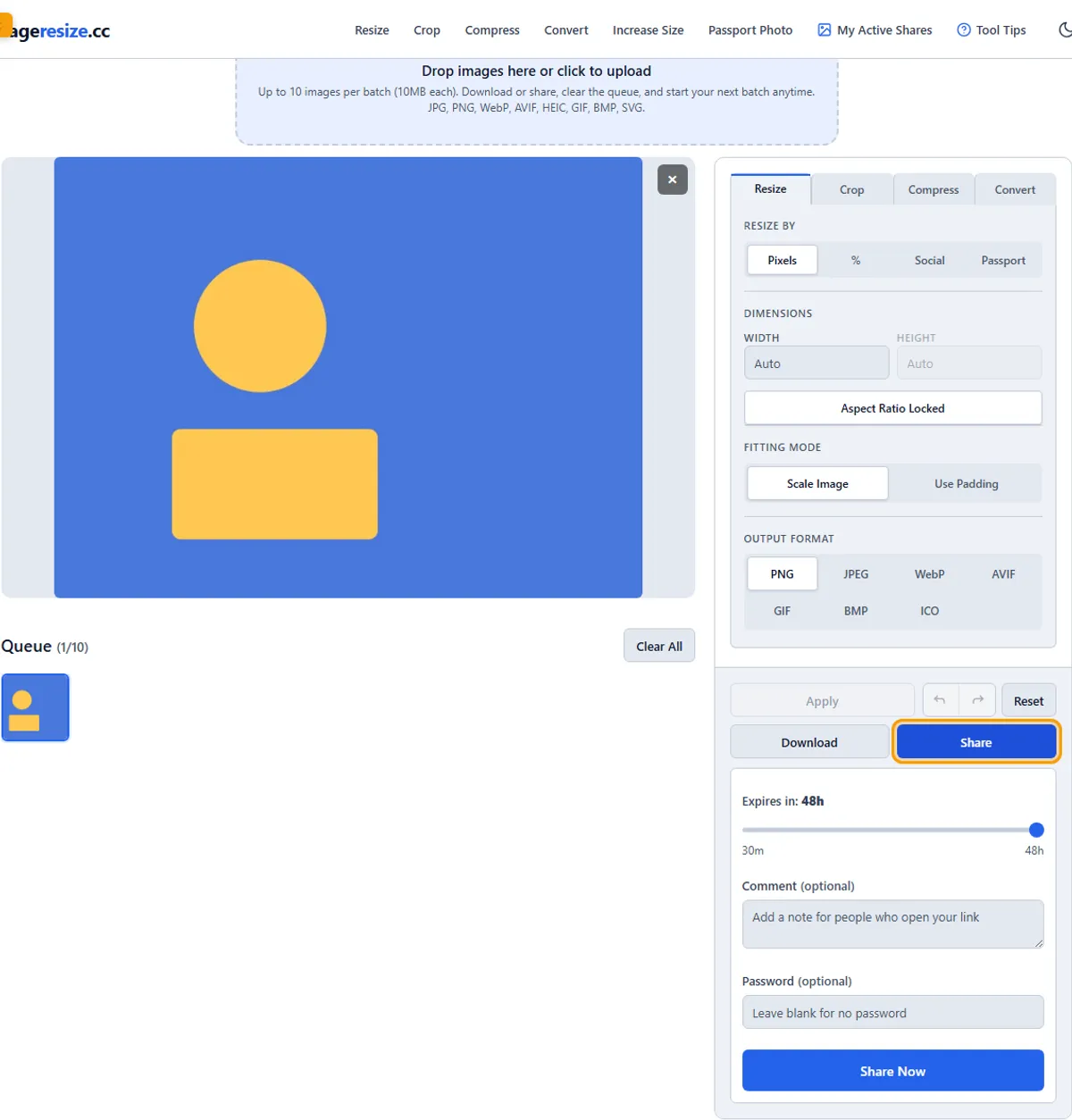
Step 2: Add message
Type up to 500 characters — instructions, project name, or version note. If the preview looks wrong, check you picked the correct source file.
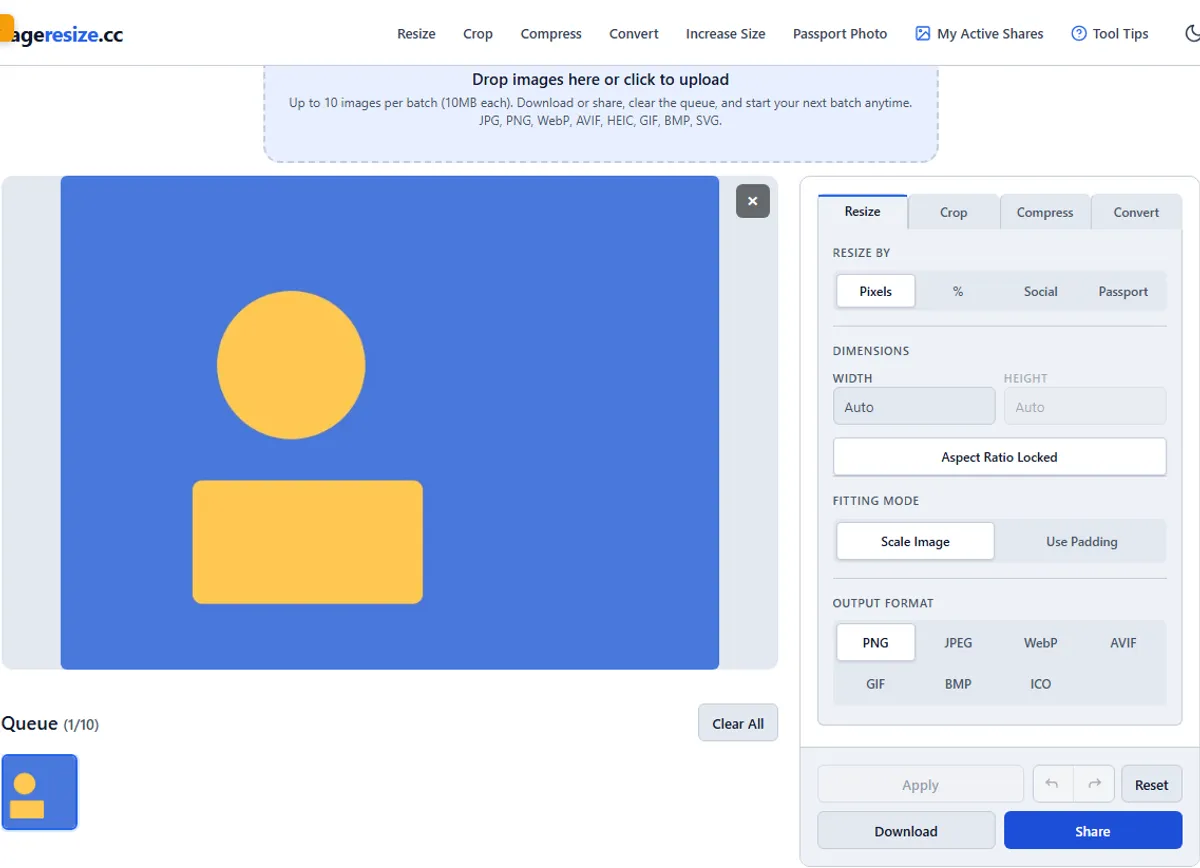
Step 3: Recipients see it
The message appears on the public share page at /s/{code}.
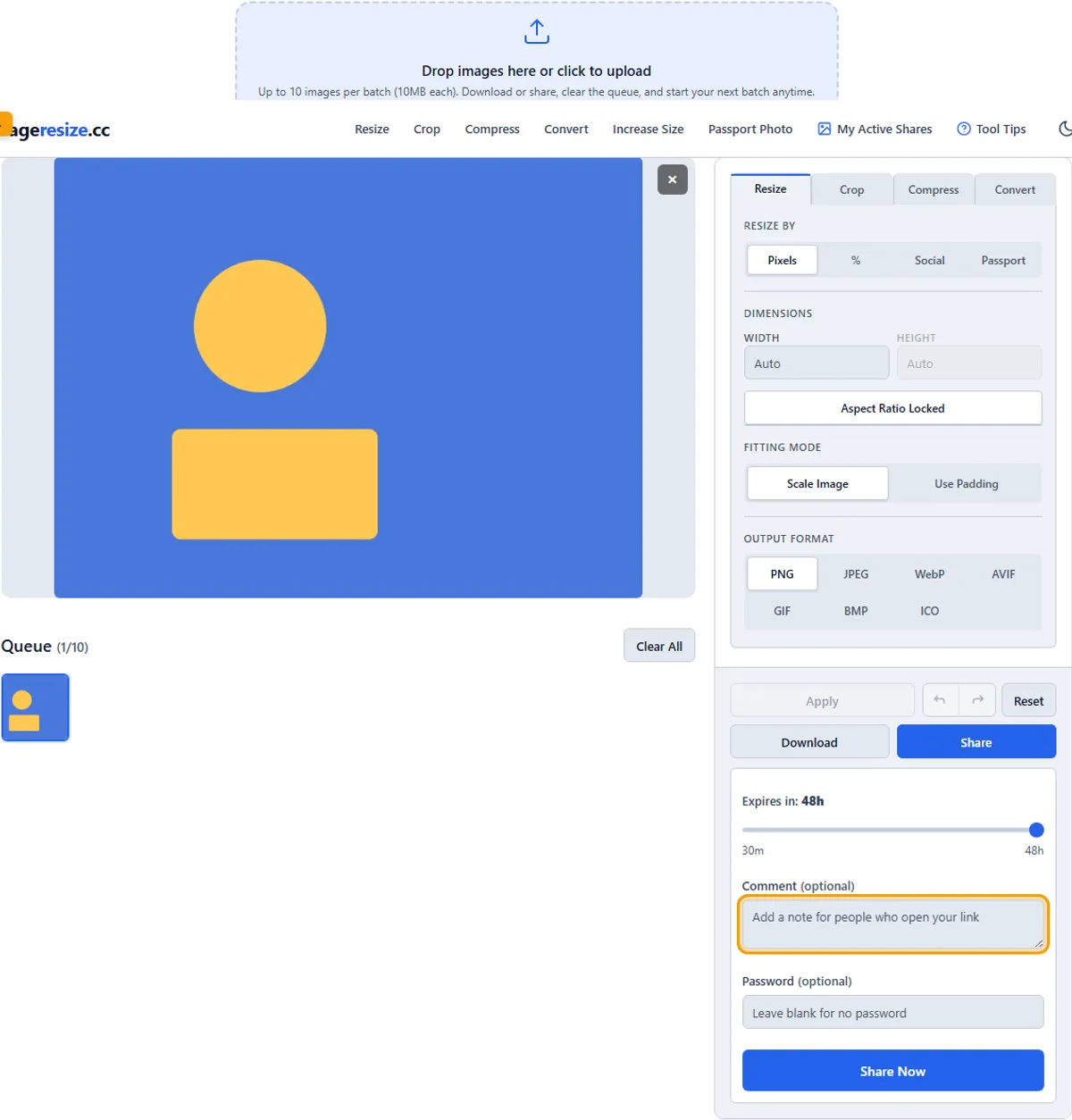
Step 4: Comments
Recipients can leave a comment for you on the share page.
Practical tip
Bookmark imageresize.cc — no account needed, works on desktop and mobile.
Try it yourself
You can run another batch anytime: clear the queue and upload up to 10 new images. Open the Owner message →
Related: Open the tool · How imageresize.cc works · FAQ
Common questions
Is imageresize.cc free?
Yes. Free tools with no watermark and no signup.