
How to Use the Format Converter (Step by Step)
July 6, 2026 By imageresize.cc
Opening a file on the wrong device often starts with the wrong format. This guide explains how to convert among 20+ formats in your browser — handy for HEIC iPhone shots, WebP exports, and older JPG workflows.
What you'll need
- The source image (HEIC, PNG, WebP, TIFF, and more)
- An idea of your output format (JPG for photos, PNG for transparency)
- A browser tab — no plugins required
Step 1: Open the tool
Go to imageresize.cc and open the Format Converter. No account or download is required. Bookmark the page if you use this workflow often.
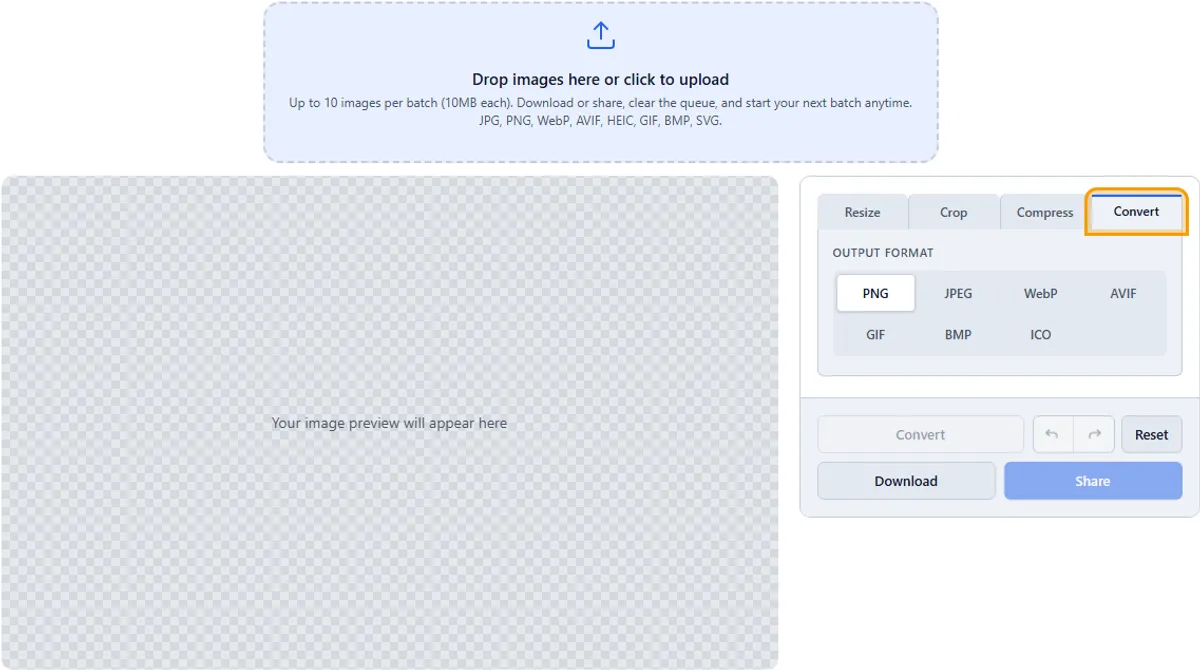
Step 2: Upload your image
Drag and drop your file onto the upload area, or click to browse. You can add up to 10 images per batch (10 MB each). If the preview looks wrong, check you picked the correct source file.
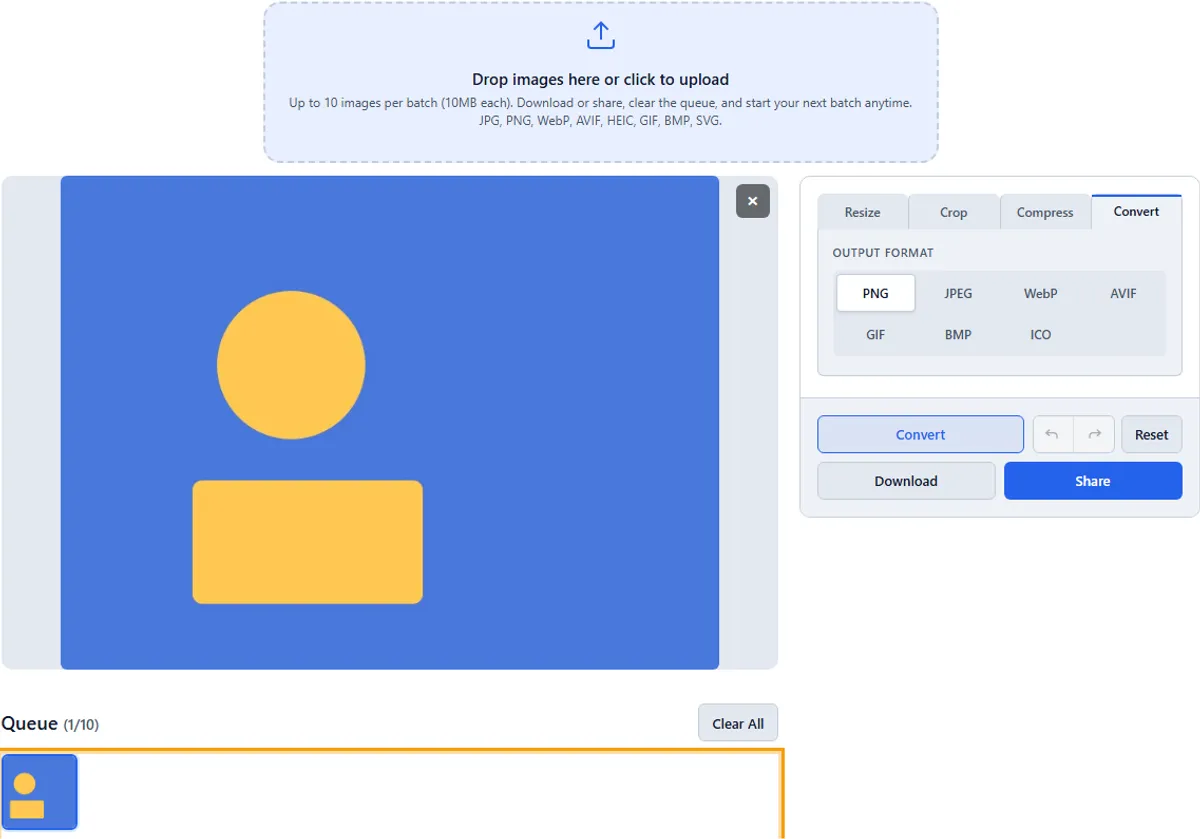
Step 3: Configure settings
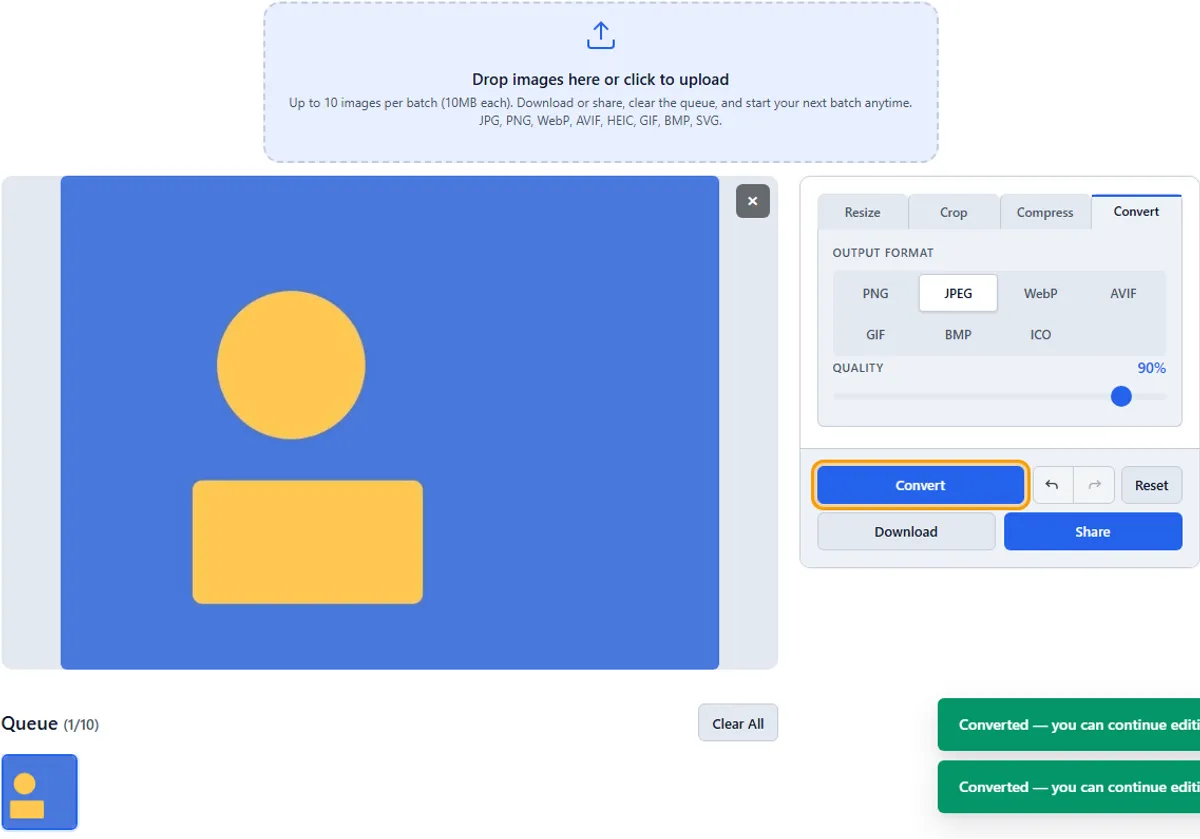
Set the options you need to convert among 20+ formats. Use the live preview to check the result before exporting.
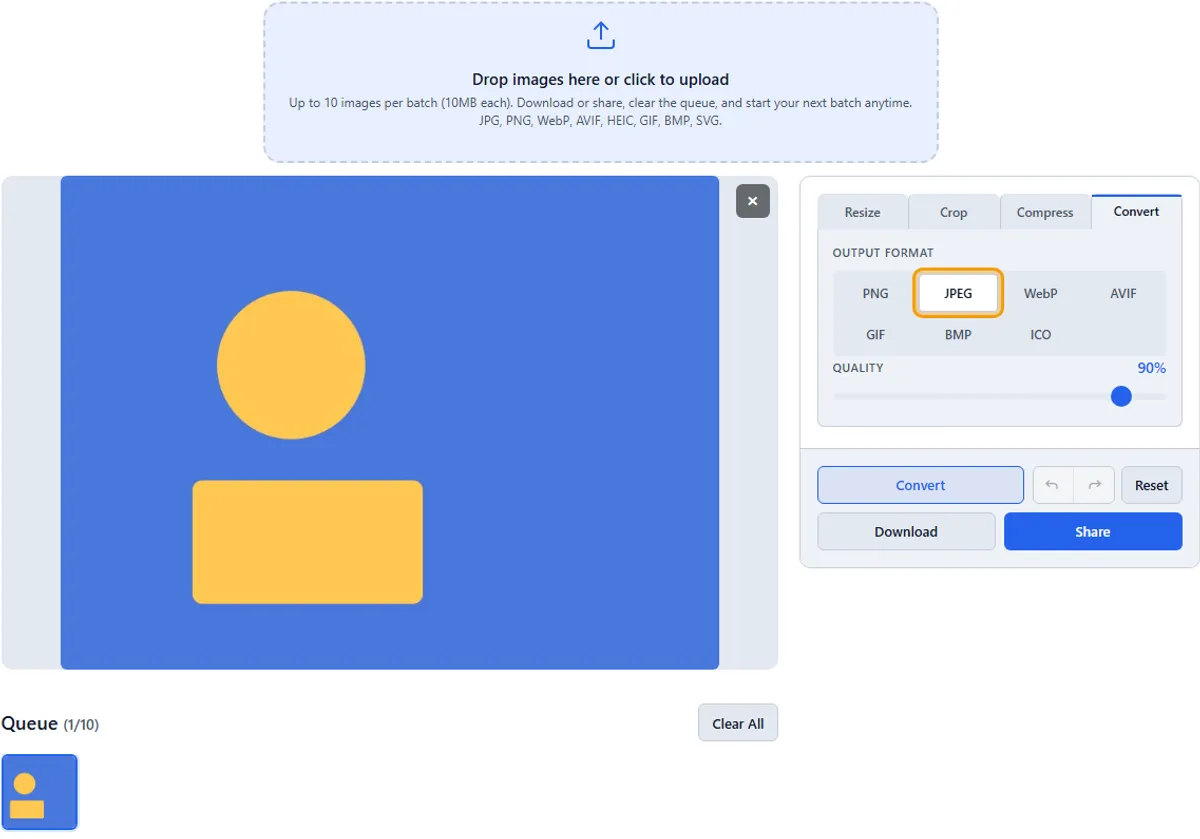
Step 4: Apply and preview
Click Apply to update the canvas preview. Use Undo if you want to try different settings.
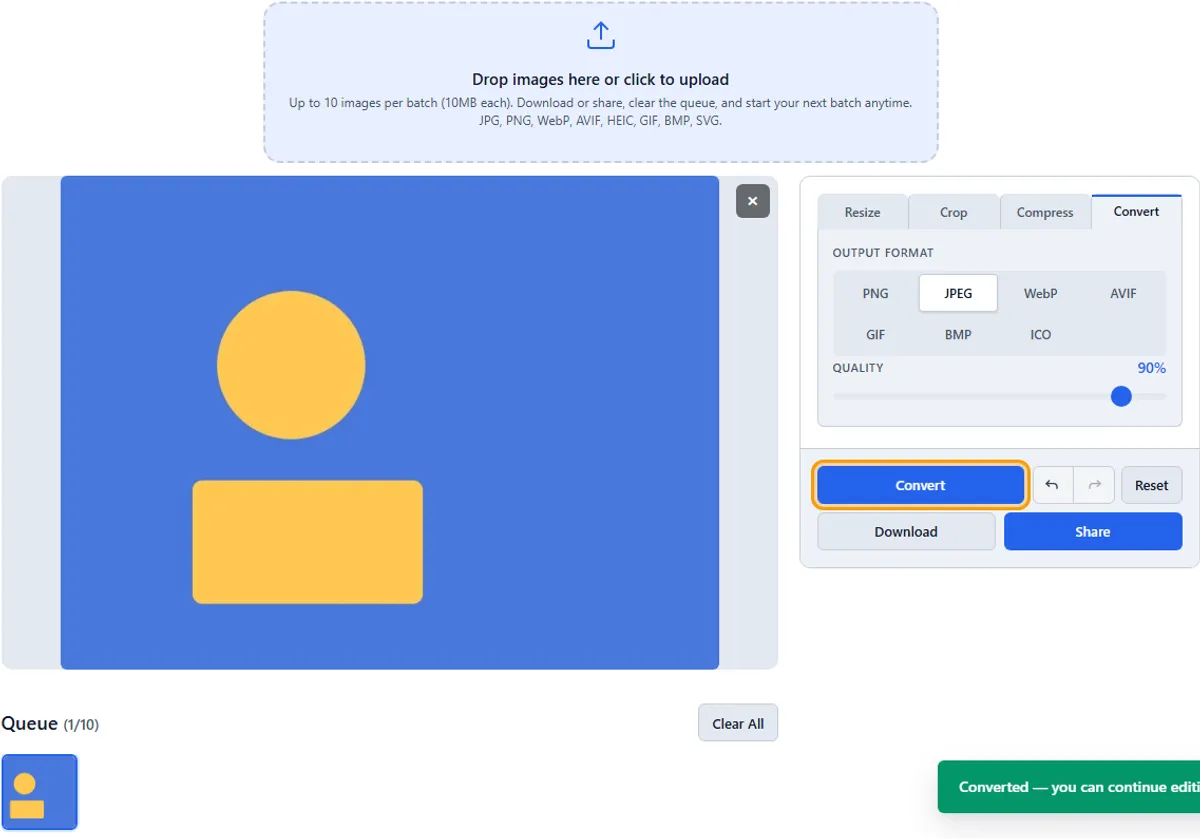
Step 5: Download or share
Click Download to save to your device, or Share to get a secure link with optional password and expiry.
Practical tip
Check My Active Shares if you need to re-download or re-share a file within 48 hours.
Try it yourself
Take a moment to check the preview at full size; small screens hide compression artifacts. Open the Format Converter →
Related: Open the tool · Image converter hub · HEIC converter
Common questions
Do I need to install software?
No. Everything runs in your browser on desktop, tablet, or phone.