
How to Resize an Image to 2048×1152 (YouTube banner safe zone) (Step by Step)
July 6, 2026 By imageresize.cc
This tutorial is for anyone who wants to resize to exactly 2048×1152 (YouTube banner safe zone) quickly and keep full control over output format and quality.
What you'll need
- One or more images (up to 10 per batch, 10 MB each)
- Any modern browser on computer, tablet, or phone
- No account — start immediately
Step 1: Open the tool
Visit imageresize.cc/resize-image-to-2048x1152. Bookmark the page if you use this workflow often.

Step 2: Upload your image
Add the photo or graphic you want to resize. If the preview looks wrong, check you picked the correct source file.
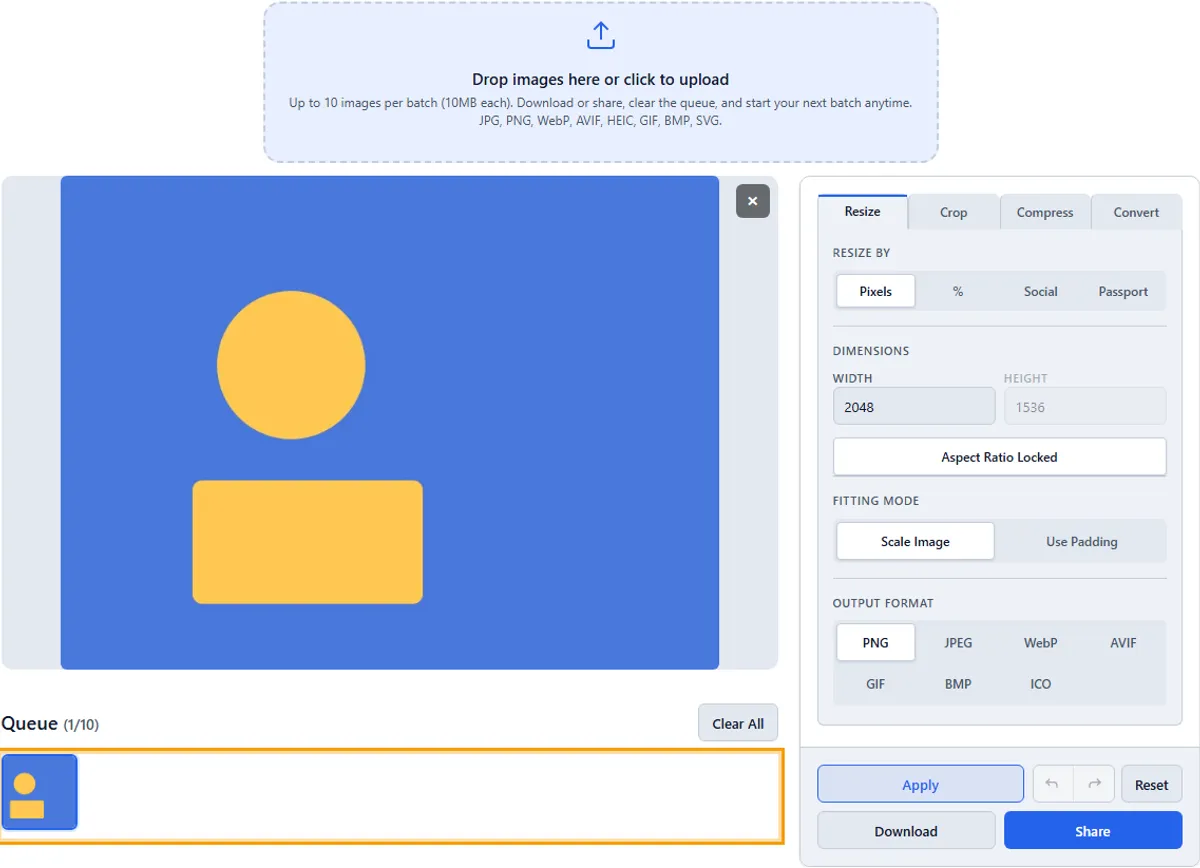
Step 3: Set dimensions
Enter 2048 × 1152 pixels (pre-filled on this page). Keep aspect ratio locked or use padding if proportions differ.

Step 4: Download
Click Apply, then Download or Share your resized image.

Practical tip
If your source image has a different aspect ratio, try Scale to fit with transparent padding instead of cropping.
Try it yourself
You can run another batch anytime: clear the queue and upload up to 10 new images. Open the Image Resizer →
Related: Open the tool · How imageresize.cc works · FAQ
Common questions
Why 2048×1152 (YouTube banner safe zone)?
This size is commonly required for web banners, thumbnails, icons, and platform-specific uploads.