
How to Make a Favicon from a Logo (Step by Step)
July 6, 2026 By imageresize.cc
Whether you are preparing images for a website, a form, or social media, knowing how to create an ICO favicon saves time. This guide uses imageresize.cc — free, in-browser, no watermark.
What you'll need
- One or more images (up to 10 per batch, 10 MB each)
- Any modern browser on computer, tablet, or phone
- No account — start immediately
Step 1: Open favicon generator
Go to imageresize.cc/favicon-generator. Bookmark the page if you use this workflow often.

Step 2: Upload logo
PNG with transparency works best. If the preview looks wrong, check you picked the correct source file.

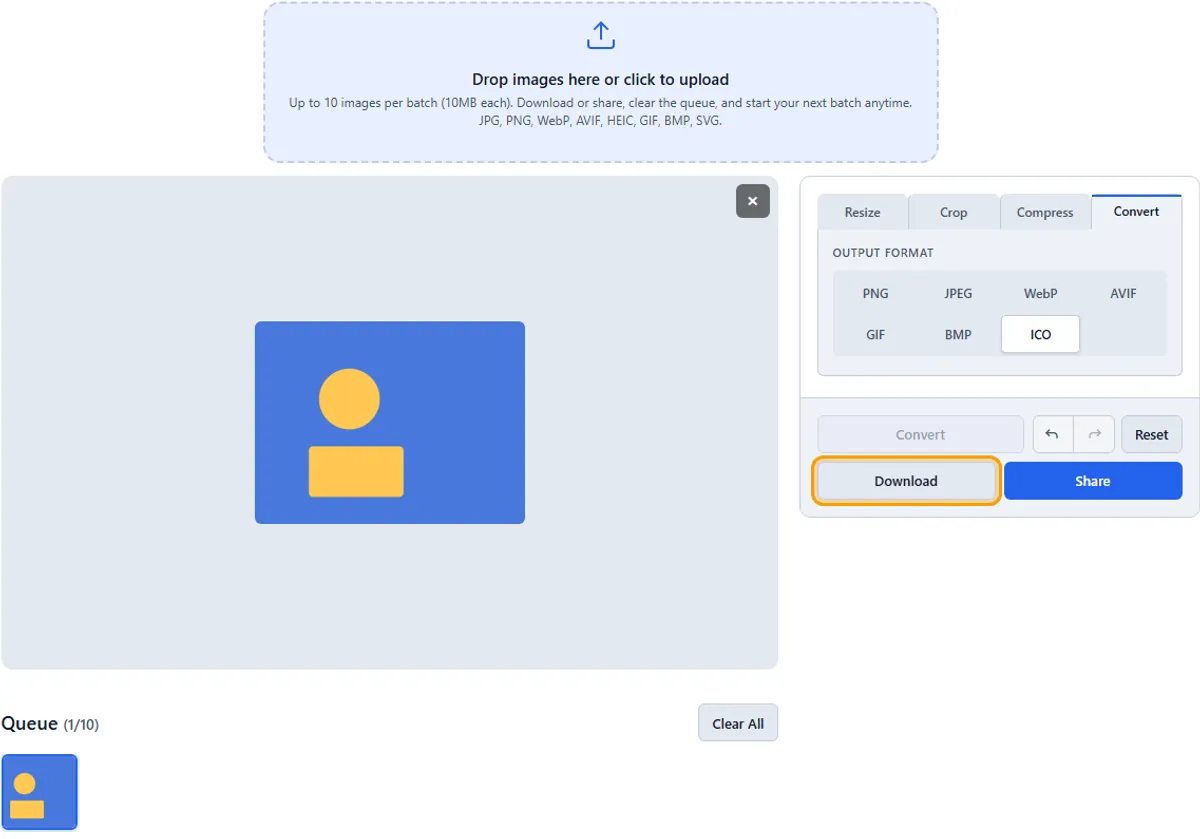
Step 3: Set ICO output
Choose ICO as output format, then pick icon size (16×16–300×300; 32×32 is standard for favicons).

Step 4: Download
Add the .ico file to your website root or CMS favicon setting.
Practical tip
Bookmark imageresize.cc — no account needed, works on desktop and mobile.
Try it yourself
You can run another batch anytime: clear the queue and upload up to 10 new images. Open the Favicon Generator →
Related: Open the tool · How imageresize.cc works · FAQ
Common questions
Is imageresize.cc free?
Yes. Free tools with no watermark and no signup.