
How to Resize Images for X/Twitter Post (Step by Step)
July 6, 2026 By imageresize.cc
How to Resize Images for X/Twitter Post (Step by Step) does not require Photoshop. Below we walk through resize images for 1600×900 post images with a live preview so you can check the result before you download.
What you'll need
- A photo from your phone or camera (JPG, PNG, or HEIC)
- The platform you are posting to (Instagram, Facebook, etc.)
- A modern browser — desktop or mobile
Step 1: Open the resizer
Go to imageresize.cc/twitter-post-image-size. Bookmark the page if you use this workflow often.
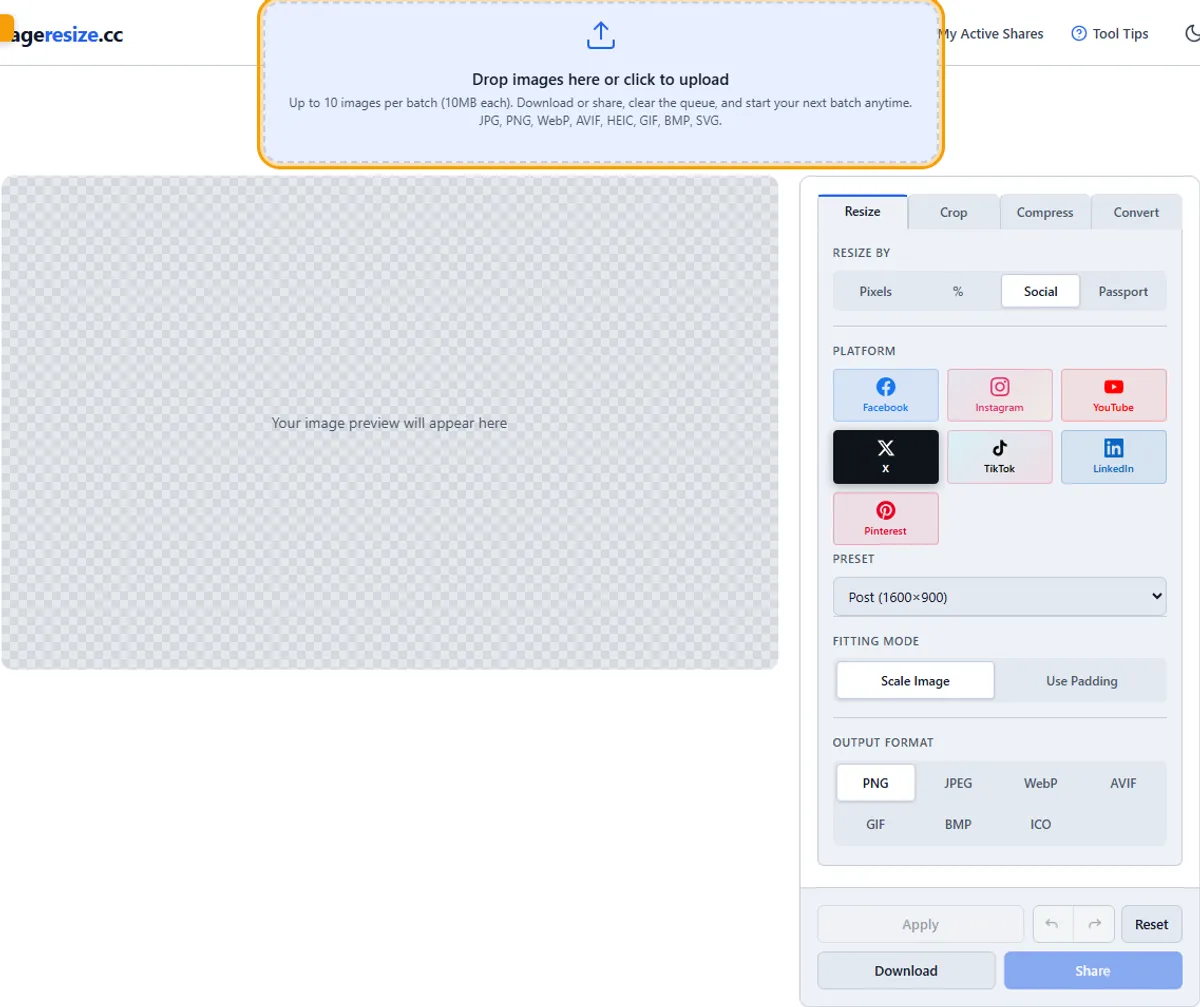
Step 2: Upload your photo
Add the image you want to post. Portrait and landscape both work — the tool scales or pads as needed. If the preview looks wrong, check you picked the correct source file.
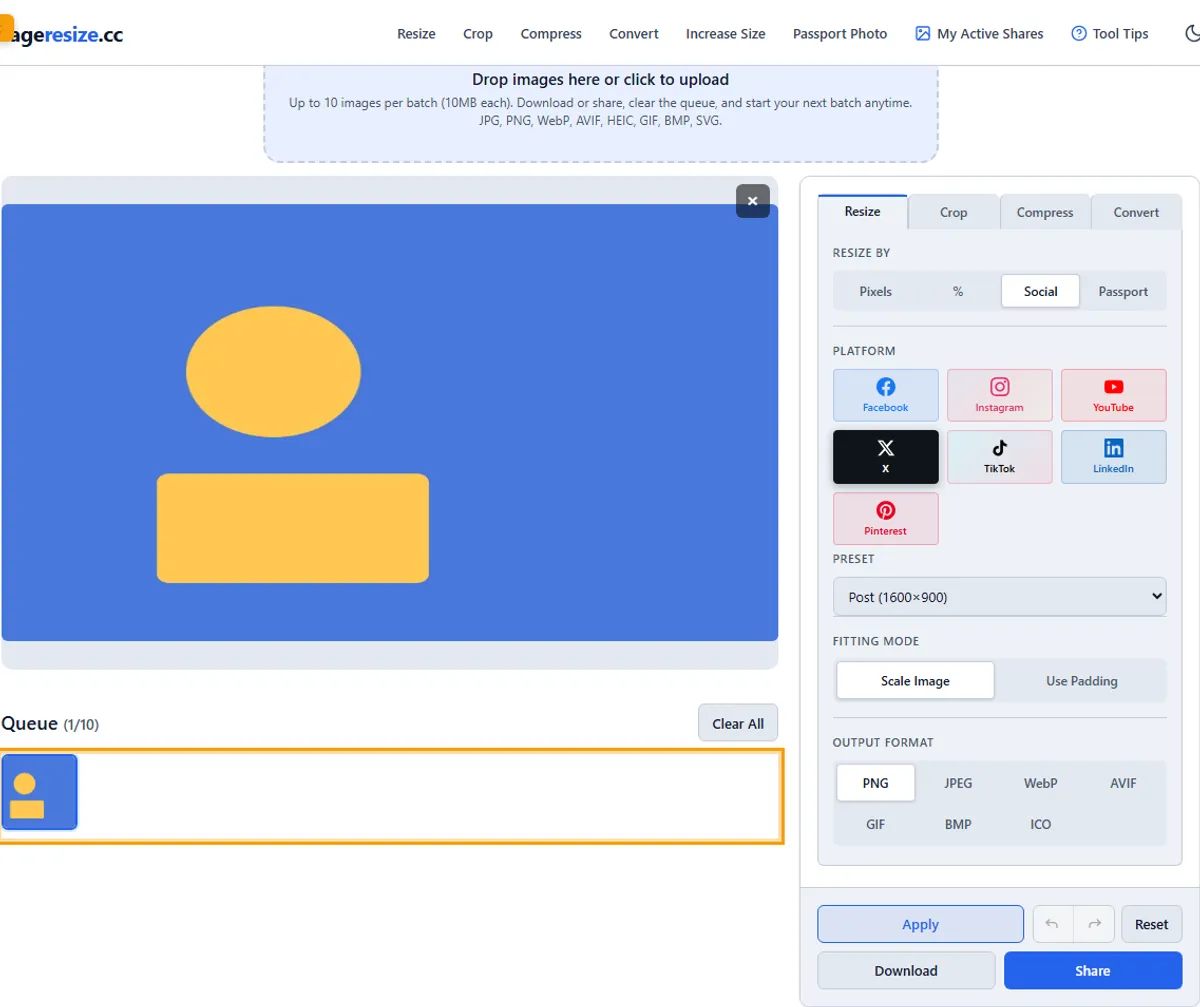
Step 3: Select Social presets
In the Resize tab, choose Resize By → Social, pick X, then select Post 1600×900.
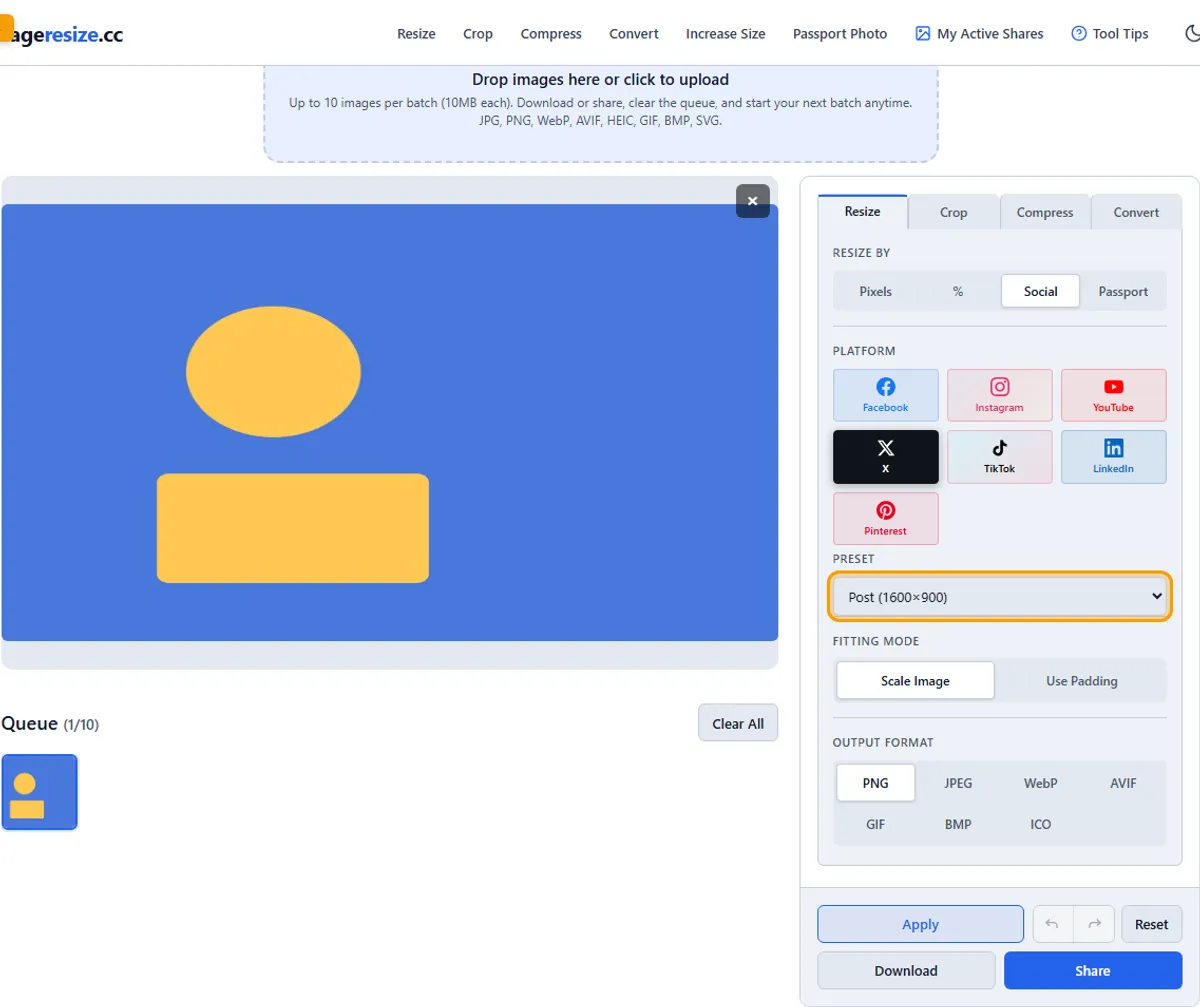
Step 4: Apply and export
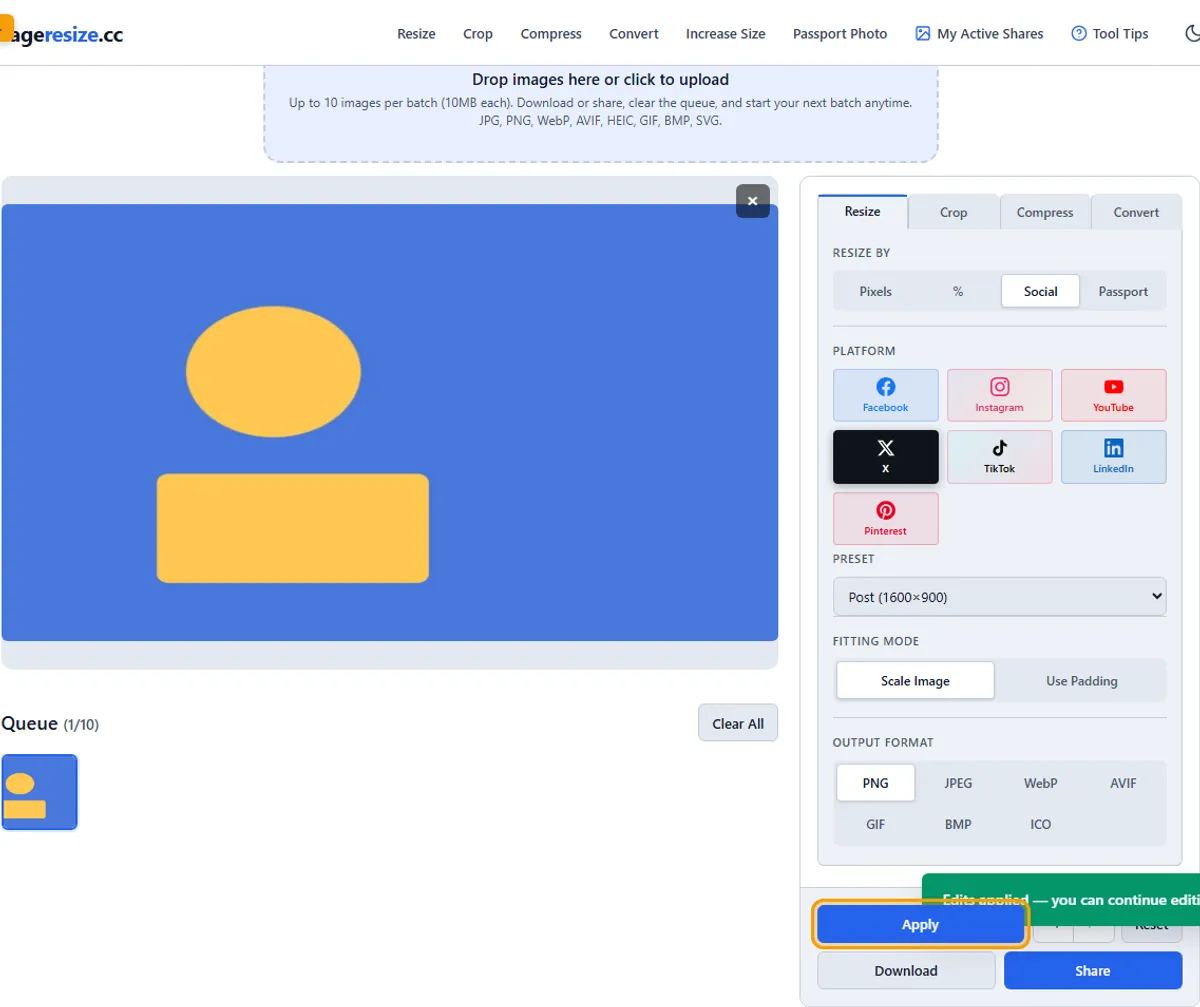
Click Apply, check the preview, then Download or Share your correctly sized image.
Practical tip
Always preview on a phone before posting — platform apps sometimes crop edges on certain devices.
Try it yourself
Take a moment to check the preview at full size; small screens hide compression artifacts. Open the X/Twitter Post Resizer →
Related: Open the tool · All social media sizes · Compress for faster uploads
Common questions
Do I need Photoshop?
No. imageresize.cc handles exact pixel dimensions in your browser for free.
What format should I use?
JPG for photos, PNG when you need transparency. WebP works on most modern platforms.