
How to Send Large Image Files (Step by Step)
July 6, 2026 By imageresize.cc
Email attachments have limits; messaging apps compress your work. Sometimes the better move is to send large images without email limits — here is how imageresize.cc sharing works.
What you'll need
- The processed image(s) ready to send
- Recipient contact method (link via text, email, chat)
- Optional: password if the file is sensitive
When a link beats an attachment
Large photos clog inboxes and lose quality in chat apps. A temporary download link lets recipients fetch the original file on their schedule. Shared files on imageresize.cc auto-delete within 48 hours unless you revoke sooner.
Step 1: Process your image
Upload and edit on imageresize.cc — resize, crop, or compress as needed. Bookmark the page if you use this workflow often.
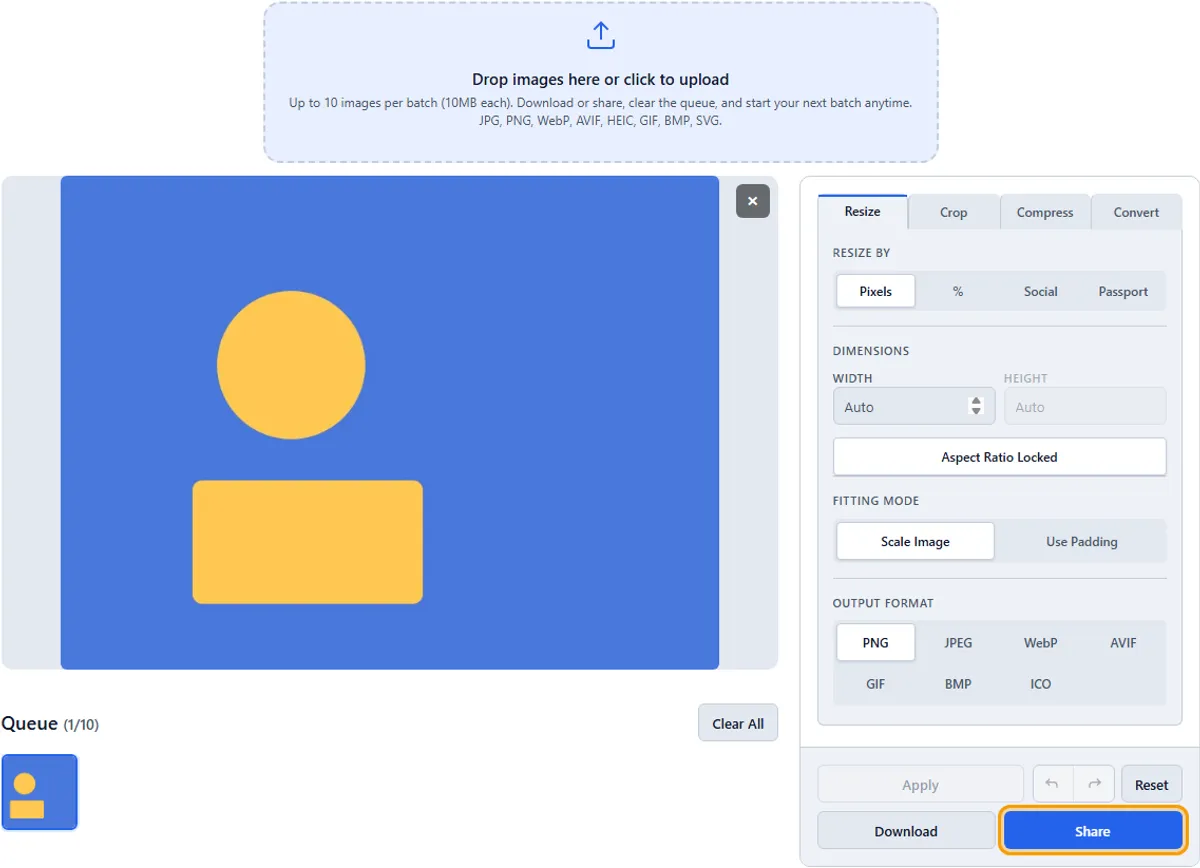
Step 2: Click Share
After clicking Apply, choose Share instead of Download. If the preview looks wrong, check you picked the correct source file.
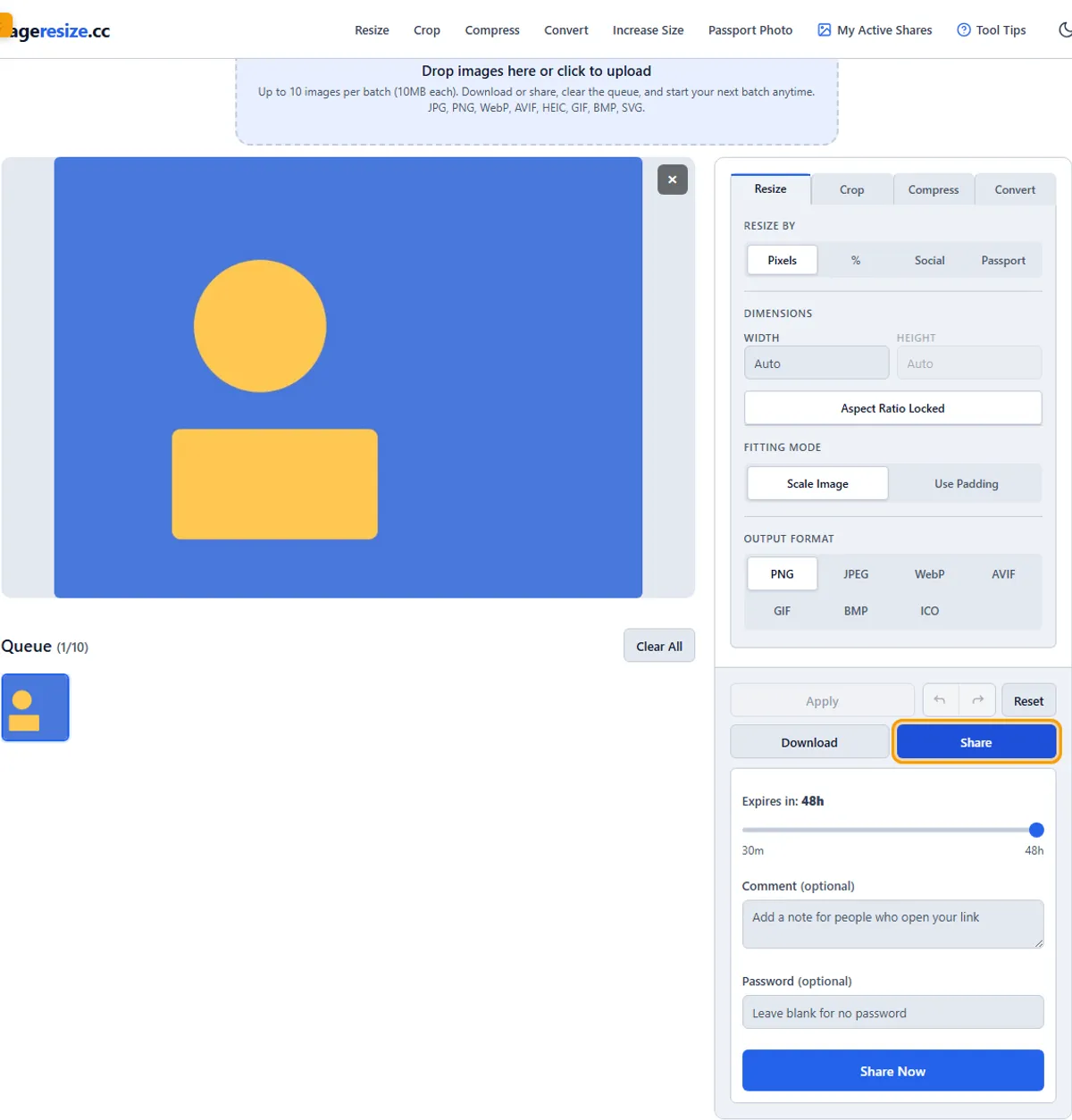
Step 3: Set link options
Pick expiry (30 minutes to 48 hours), optional password, download limit, and owner message.
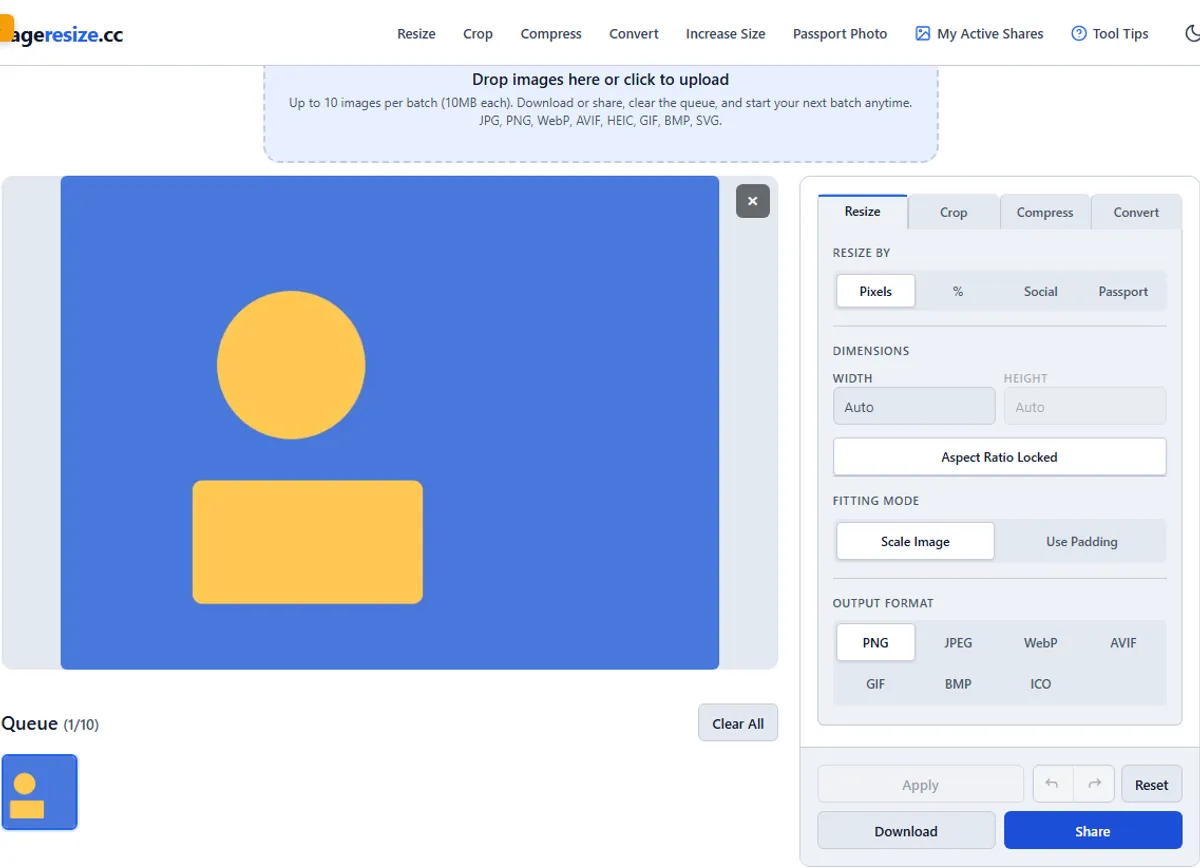
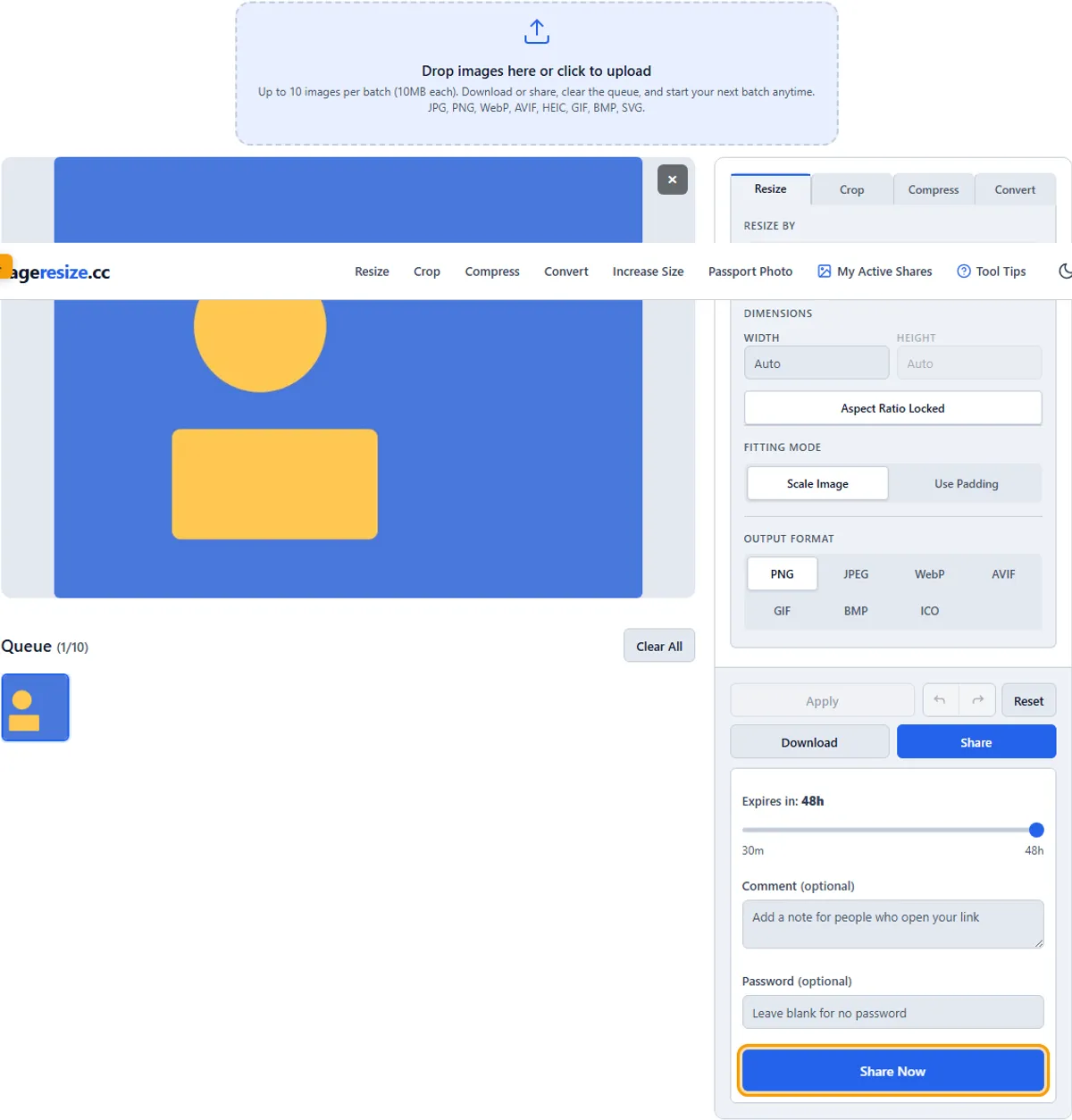
Step 4: Copy and send
Copy the link and send it to your recipient. They can preview and download without an account.
Practical tip
Revoke a link anytime from My Active Shares if you sent it to the wrong person.
Try it yourself
When you are happy with the preview, download to your device or share a link — your choice. Open the Share tool →
Related: Open the tool · My Active Shares · Privacy policy
Common questions
How long do shared files stay online?
Shared files auto-delete within 48 hours of upload. You can choose shorter expiry when creating the link.