
How to Pick a Social Media Preset (Step by Step)
July 6, 2026 By imageresize.cc
This is a single-task guide for imageresize.cc users who want to pick Facebook, Instagram, or other presets without reading a long manual.
What you'll need
- One or more images (up to 10 per batch, 10 MB each)
- Any modern browser on computer, tablet, or phone
- No account — start immediately
Step 1: Choose Social mode
In Resize, set Resize By to Social. Bookmark the page if you use this workflow often.
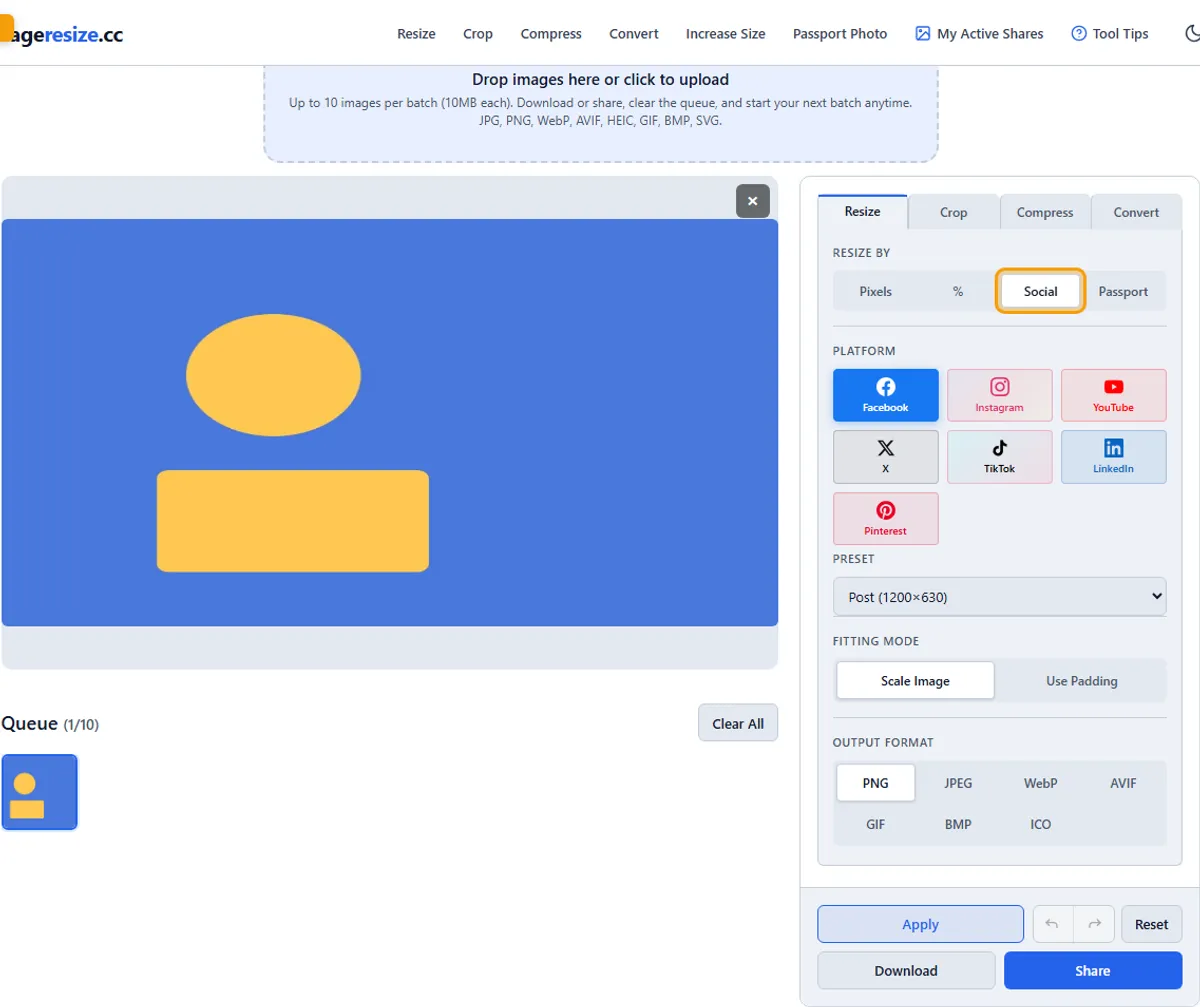
Step 2: Pick platform
Select Facebook, Instagram, YouTube, X, TikTok, LinkedIn, or Pinterest. If the preview looks wrong, check you picked the correct source file.

Step 3: Pick preset
Choose Post, Story, Cover, Thumbnail, or other size for that platform.

Step 4: Apply
Dimensions fill in automatically — click Apply and download.

Practical tip
Bookmark imageresize.cc — no account needed, works on desktop and mobile.
Try it yourself
Take a moment to check the preview at full size; small screens hide compression artifacts. Open the Social presets →
Related: Open the tool · How imageresize.cc works · FAQ
Common questions
Is imageresize.cc free?
Yes. Free tools with no watermark and no signup.