
How to Increase File Size to Target KB (Step by Step)
July 6, 2026 By imageresize.cc
How to Increase File Size to Target KB (Step by Step) sounds technical, but the process is simple. Here is how to meet minimum upload size requirements from upload to download.
What you'll need
- One or more images (up to 10 per batch, 10 MB each)
- Any modern browser on computer, tablet, or phone
- No account — start immediately
Step 1: Open Increase Image Size
Use the nav link or /increase-image-size. Bookmark the page if you use this workflow often.
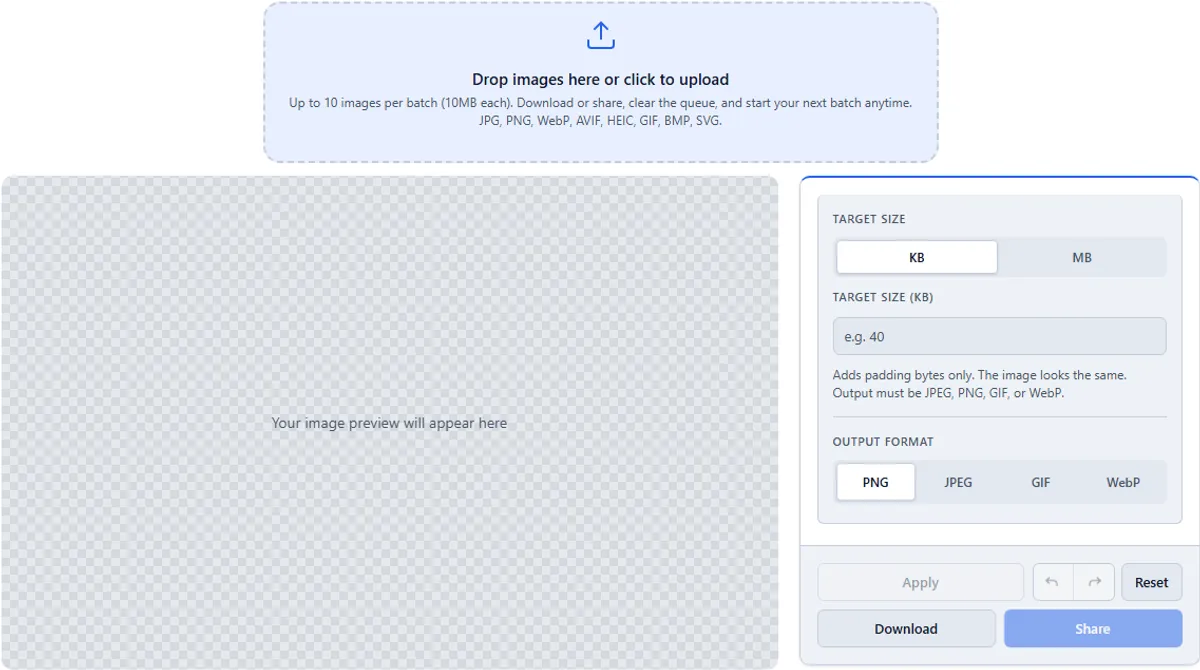
Step 2: Upload image
Add the file that is too small for a portal requirement. If the preview looks wrong, check you picked the correct source file.

Step 3: Set target KB or MB
Enter the minimum size required — pixels stay the same.
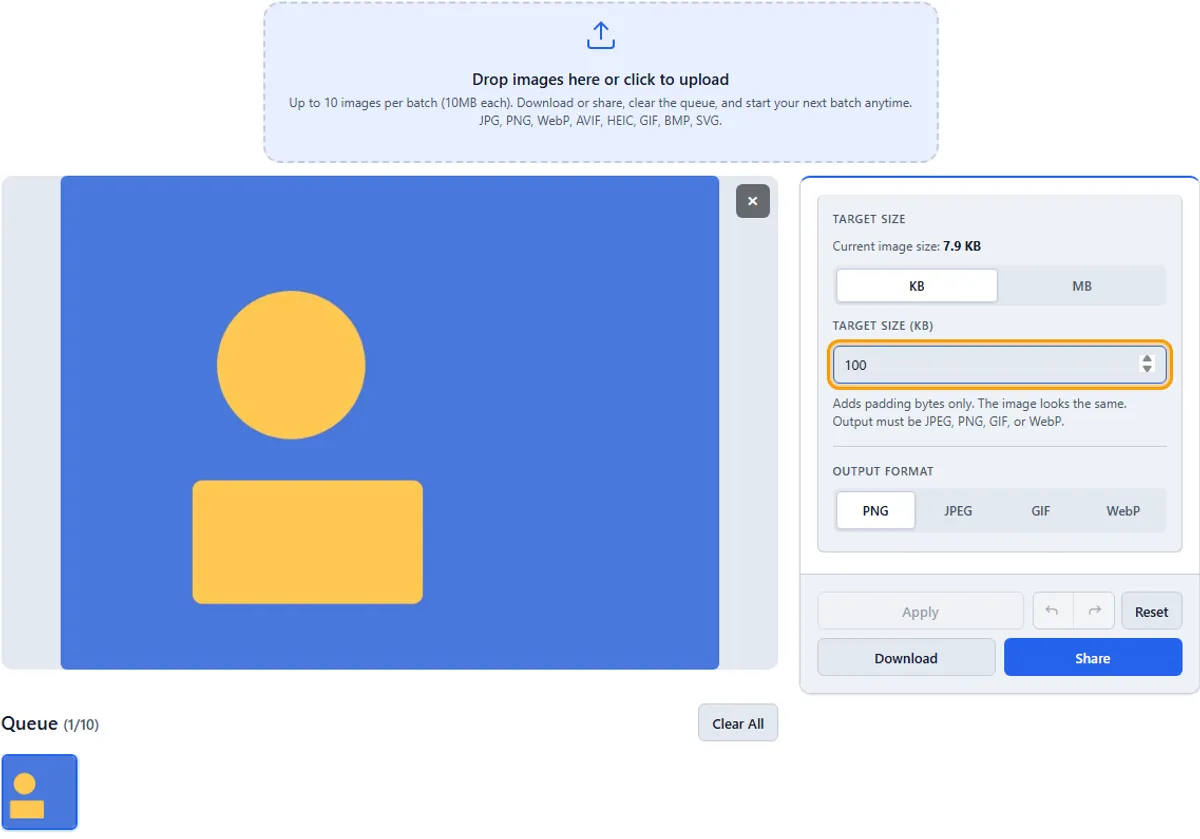
Step 4: Download
Export the padded file. This is not AI upscaling.

Practical tip
Bookmark imageresize.cc — no account needed, works on desktop and mobile.
Try it yourself
Take a moment to check the preview at full size; small screens hide compression artifacts. Open the Increase Size →
Related: Open the tool · How imageresize.cc works · FAQ
Common questions
Is imageresize.cc free?
Yes. Free tools with no watermark and no signup.