
How to Crop an Image to 1:1 ratio (Step by Step)
July 6, 2026 By imageresize.cc
A good crop removes distraction and fits the ratio your project needs. Follow along to crop to 1:1 ratio; you can undo and try again before exporting.
What you'll need
- The photo you want to reframe
- Your target ratio (1:1, 16:9, passport preset, etc.)
- Optional: official size requirements for ID photos
Step 1: Open the cropper
Visit imageresize.cc/crop-image-1-1. Bookmark the page if you use this workflow often.

Step 2: Upload your image
Add the photo you want to crop. If the preview looks wrong, check you picked the correct source file.
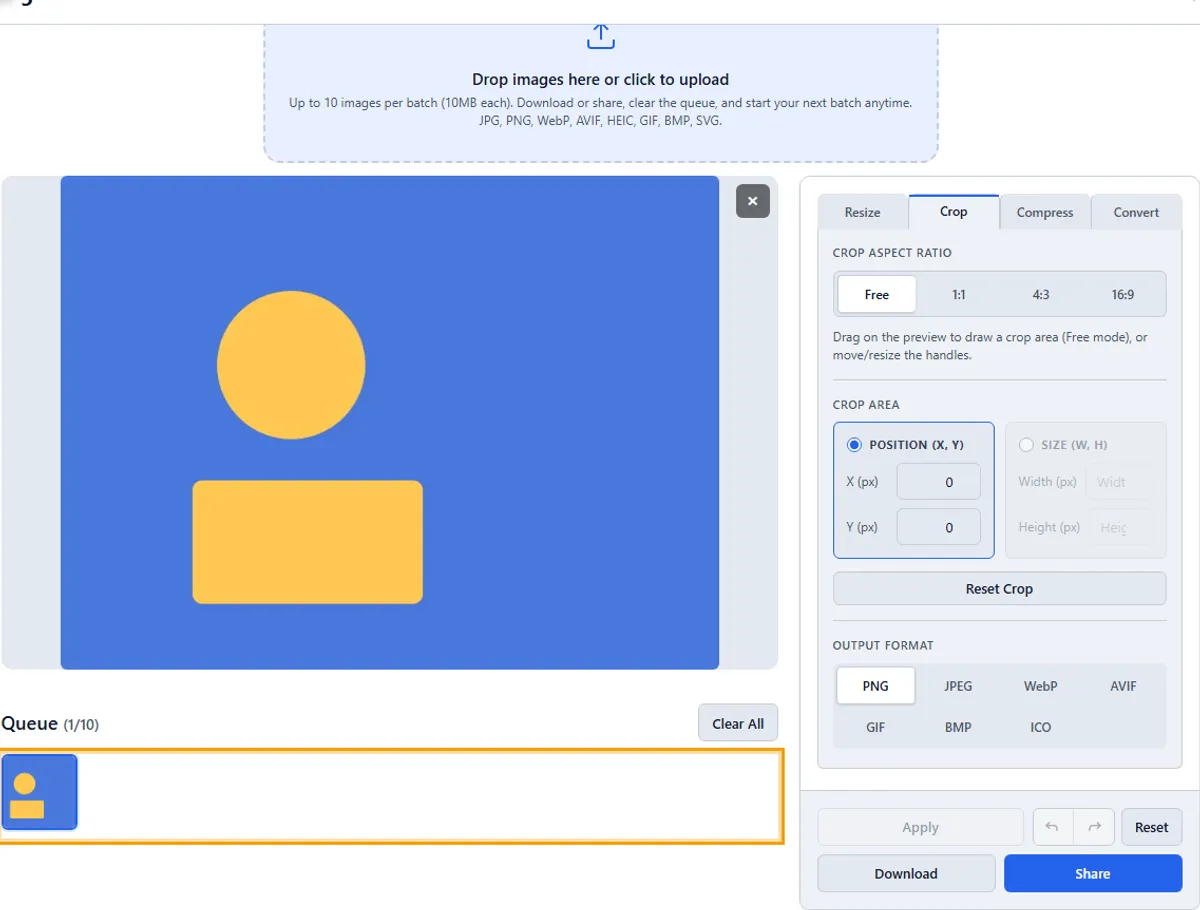
Step 3: Select aspect ratio
Choose 1:1 from Crop Aspect Ratio (or Free to draw any area).

Step 4: Adjust crop box
Drag handles on the preview or enter X, Y, width, and height numerically.
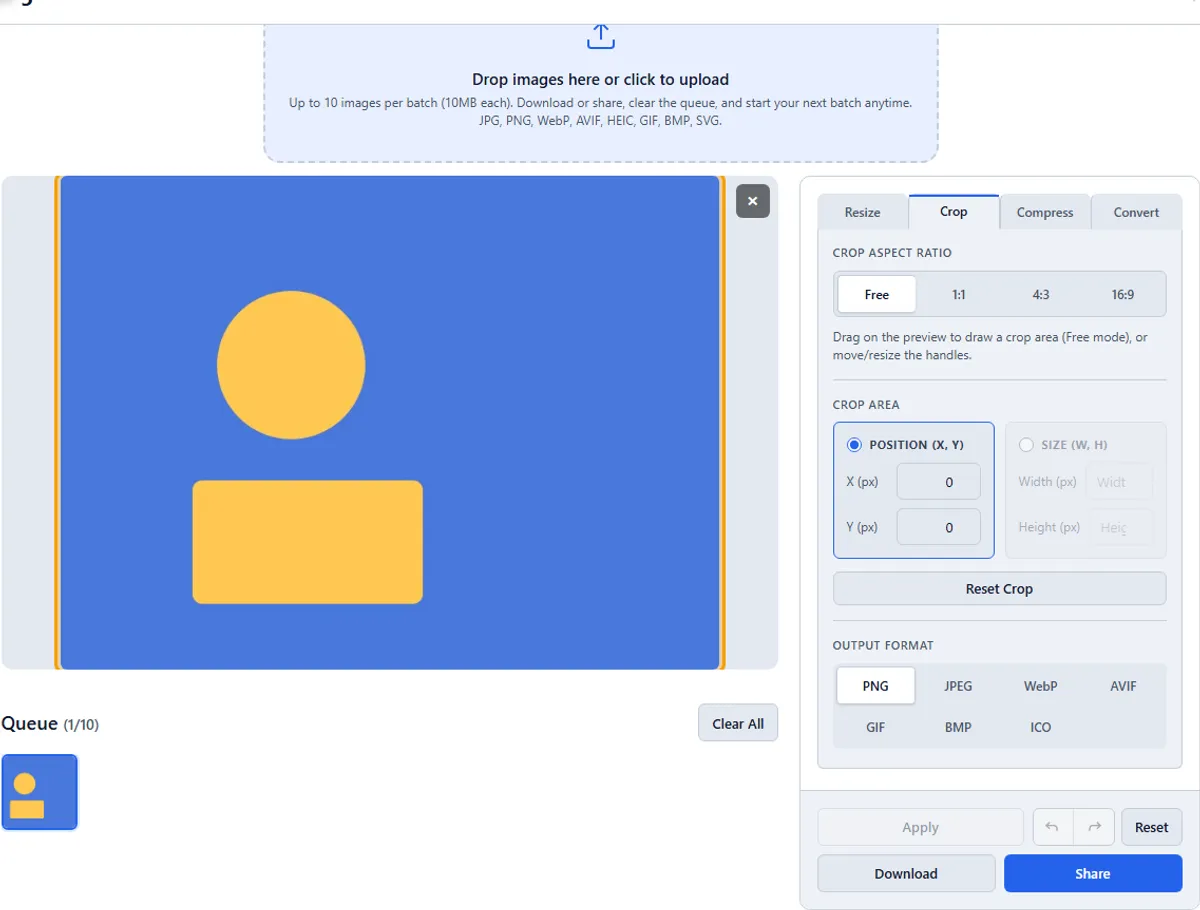
Step 5: Download
Click Apply, then Download your cropped image.

Practical tip
Use Undo to compare crops without re-uploading the original file.
Try it yourself
You can run another batch anytime: clear the queue and upload up to 10 new images. Open the Image Cropper →
Related: Open the tool · Image cropper · Passport photo tool
Common questions
Can I crop for free?
Yes — no watermark, no account, up to 10 images per batch.