
How to Convert SVG to PNG (Step by Step)
July 6, 2026 By imageresize.cc
This walkthrough covers how to convert SVG files to PNG without installing software. Upload, pick your output format, preview, then download or share.
What you'll need
- The source image (HEIC, PNG, WebP, TIFF, and more)
- An idea of your output format (JPG for photos, PNG for transparency)
- A browser tab — no plugins required
Step 1: Open the converter
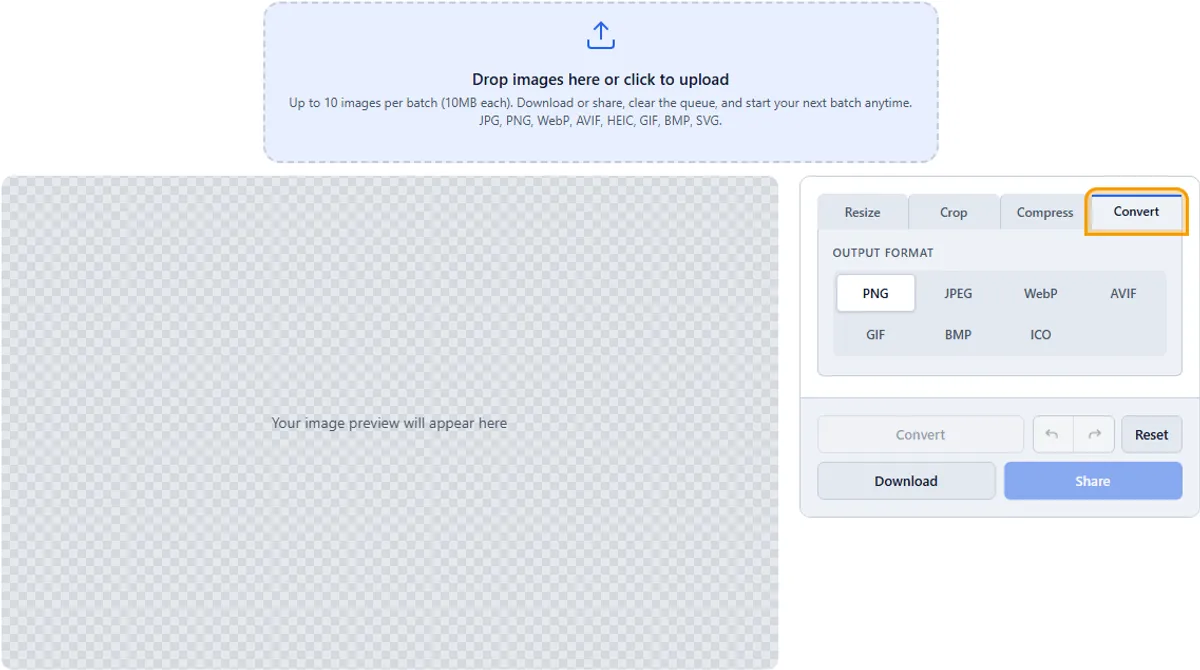
Visit imageresize.cc/convert-svg-to-png — the Convert tab opens with PNG pre-selected. Bookmark the page if you use this workflow often.
Step 2: Upload your file
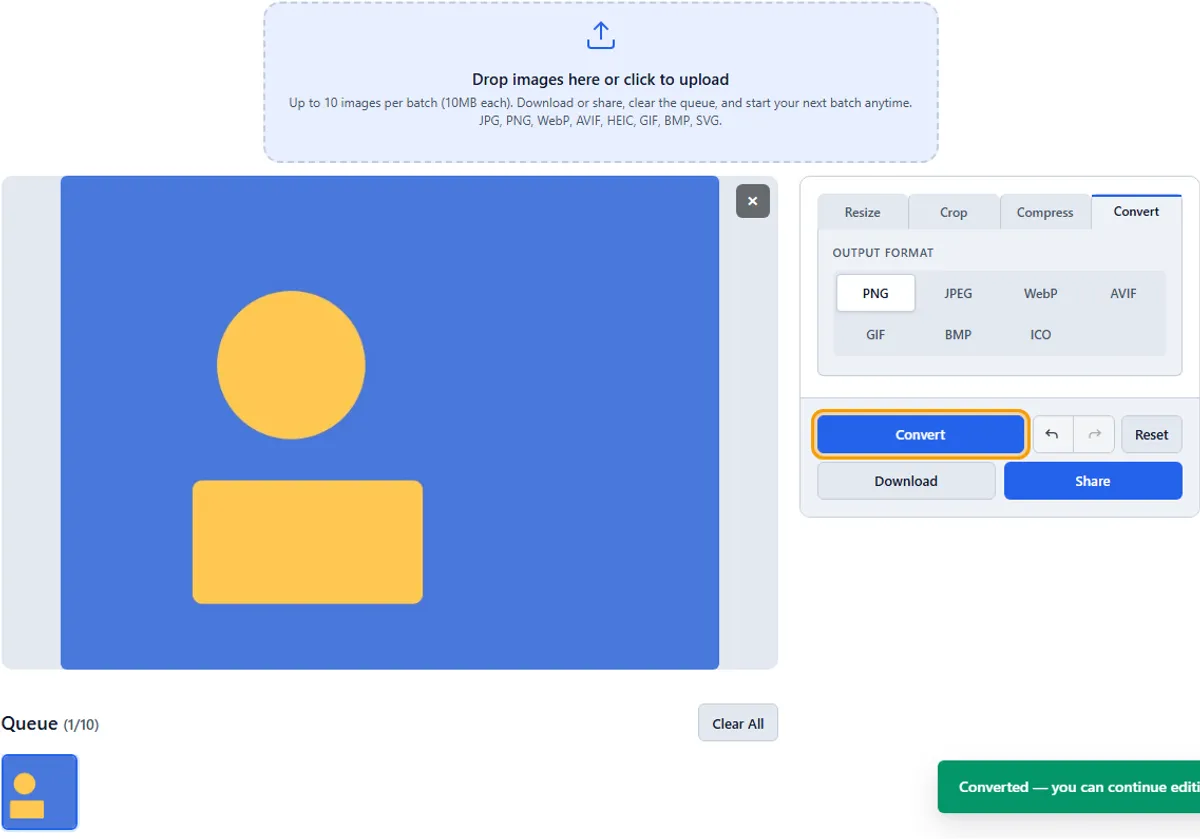
Add your SVG image. HEIC and TIFF files are handled automatically even if your browser cannot preview them natively. If the preview looks wrong, check you picked the correct source file.

Step 3: Confirm output format
Verify PNG is selected in Output Format. PNG, GIF, and BMP export without a quality slider.

Step 4: Apply and download
Click Apply, preview the result, then Download or Share your converted file.
Practical tip
Converting to PNG can significantly reduce file size for web use while keeping good visual quality.
Try it yourself
When you are happy with the preview, download to your device or share a link — your choice. Open the SVG to PNG Converter →
Related: Open the tool · Image converter hub · HEIC converter
Common questions
Will I lose quality converting SVG to PNG?
PNG, GIF, BMP, and ICO use lossless export settings.
Is my file uploaded to a server?
Editing happens in your browser. Files upload only when you click Download or Share.